Ever wondered how to safeguard your precious gaming library from unexpected data loss or lengthy re-downloads? This comprehensive guide dives deep into the world of Steam backup game files, offering practical, step-by-step instructions designed for the busy US gamer. Whether you are upgrading your PC, managing limited internet data, or simply want peace of mind, understanding how to effectively backup your Steam games is crucial. We will cover everything from using Steam's built-in tools to manual methods and even cloud saving tips, ensuring your digital adventures are always protected. This article is tailored for those balancing work and family, providing efficient solutions to common gaming challenges without the hype, just solid, actionable advice. Learn to secure your game data today and keep playing without interruptions.
What is the primary benefit of backing up Steam game files?
The primary benefit of backing up Steam game files is to protect your valuable game installations and progress from data loss due to hardware failure, accidental deletion, or operating system issues. This saves you significant time and internet bandwidth by avoiding lengthy re-downloads, allowing busy gamers to get back to playing faster.
How do I find my Steam game files on my PC?
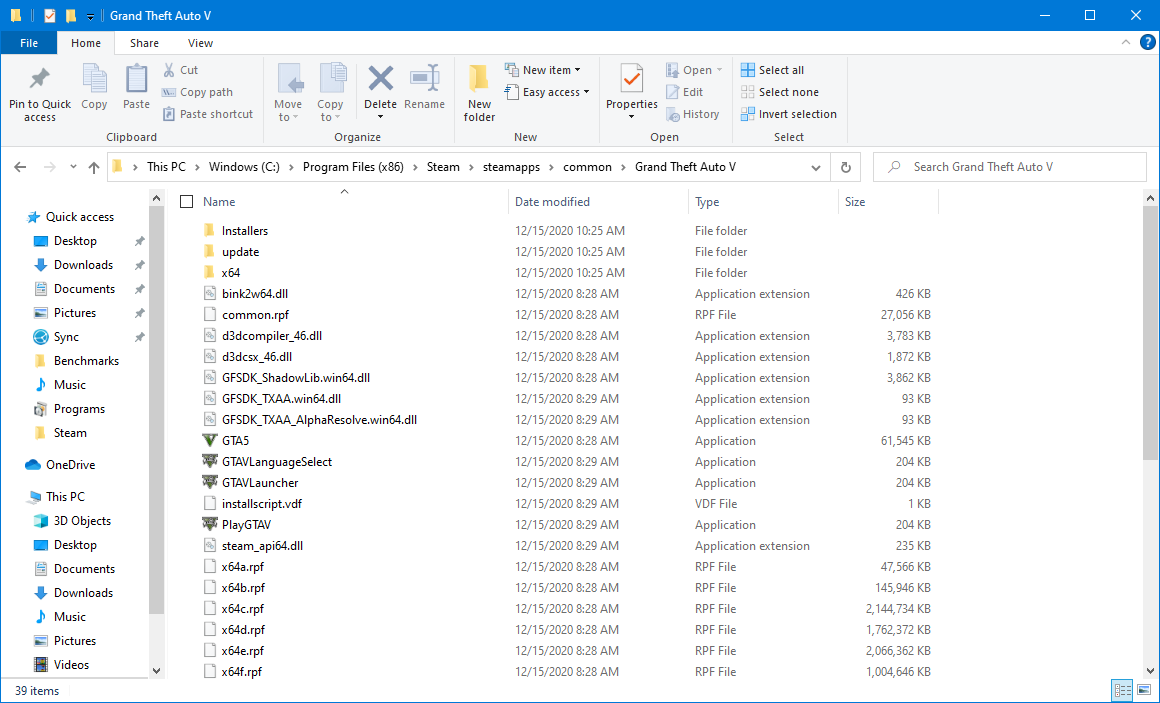
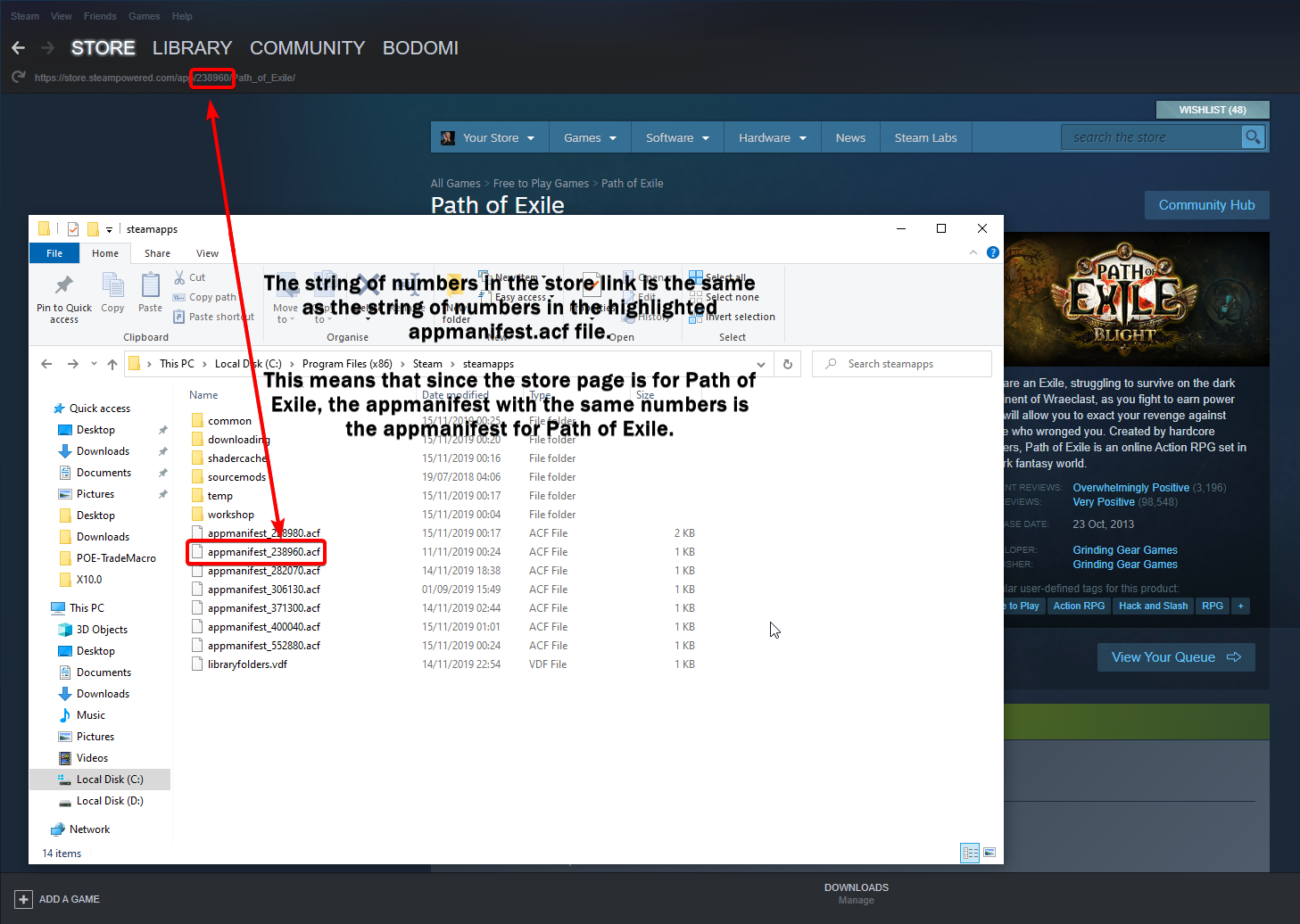
Your Steam game files are typically located within the Steam installation directory. The default path is often C:Program Files (x86)Steamsteamappscommon. Inside the 'common' folder, you will find individual directories for each of your installed Steam games.
Can I backup specific games only, or do I have to backup my entire Steam library?
You can absolutely backup specific games only. Steam's built-in backup utility allows you to select individual games from your installed list to backup. Similarly, if you choose to manually copy files, you can simply select and copy the folders for the games you wish to preserve.
What are the best storage solutions for my Steam game backups?
The best storage solutions for Steam game backups include external hard drives (HDDs for large capacity, SSDs for faster access), network-attached storage (NAS) devices for home networks, or even a secondary internal hard drive. Avoid storing backups on the same drive as your primary game installations to prevent simultaneous data loss.
How long does it take to backup a large Steam game?
The time it takes to backup a large Steam game depends on the game's size, your computer's processing speed, and the speed of your backup drive. For a 100GB game, it could range from 30 minutes to a couple of hours using Steam's built-in tool, and potentially faster for manual copying to a fast SSD.
How can I automate Steam game save backups?
While Steam does not offer an automated full game backup, you can automate save file backups using third-party tools like GameSave Manager or by setting up scheduled tasks with file synchronization software (e.g., FreeFileSync) to regularly copy your save game folders to a backup location. Steam Cloud also provides automatic save syncing for supported games.
Is it possible to restore Steam games to a different computer?
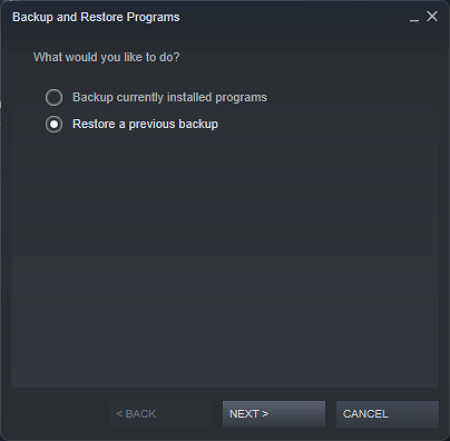
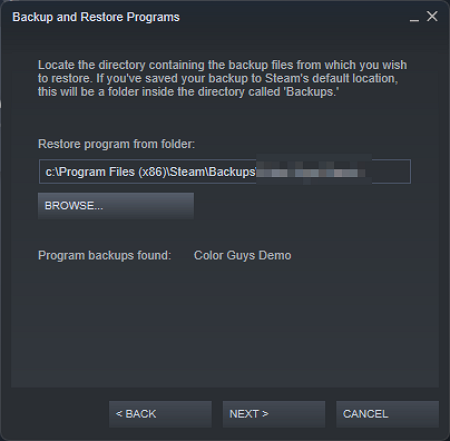
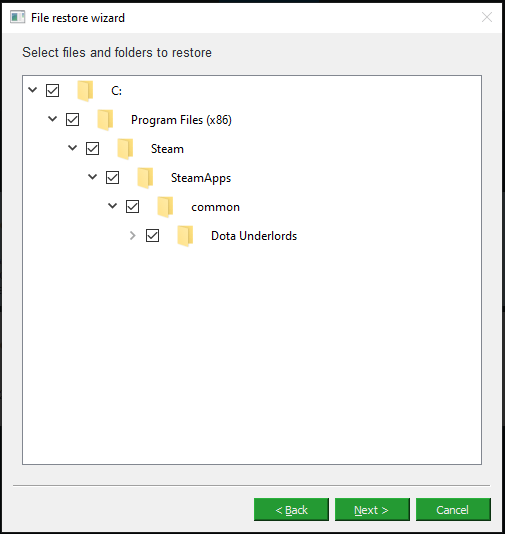
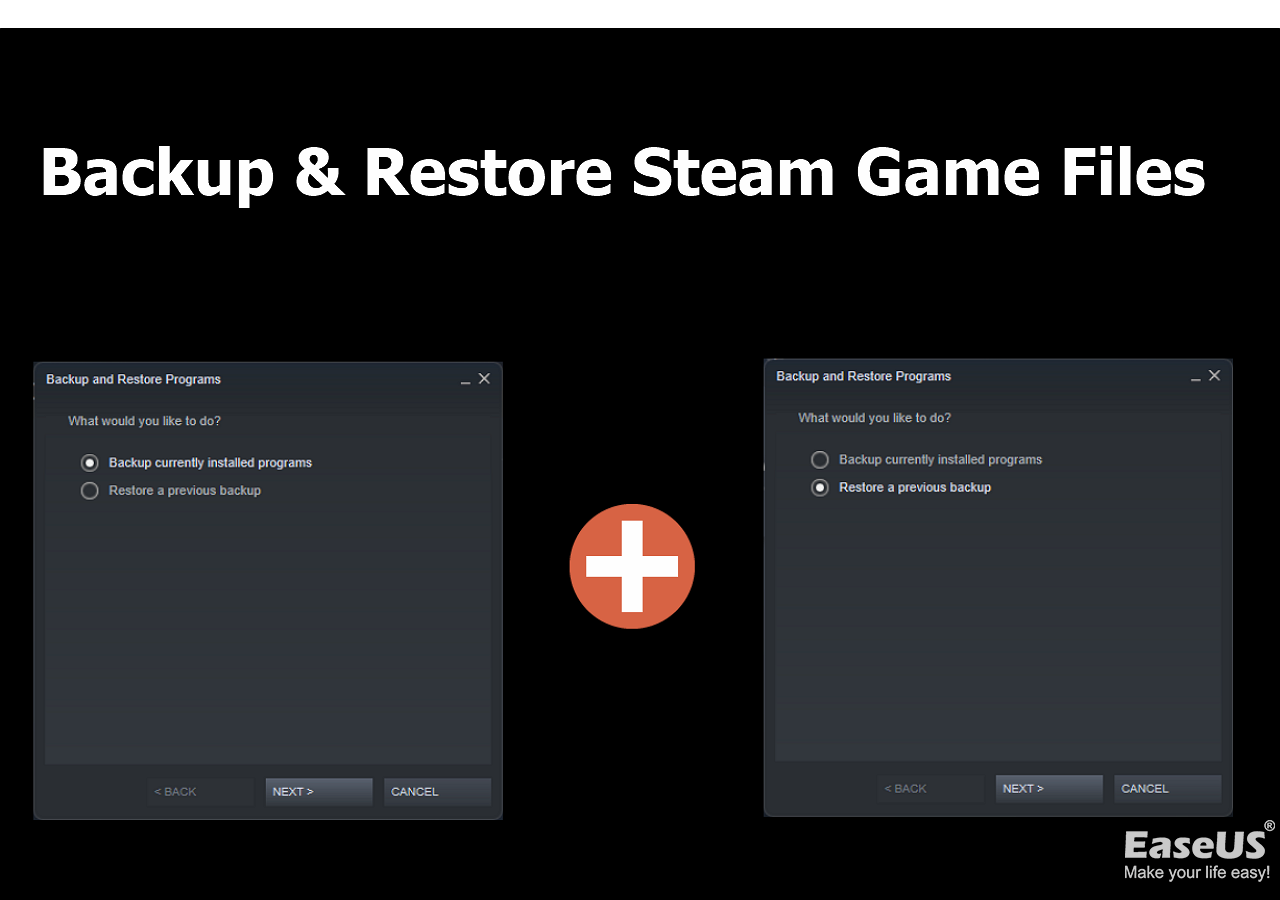
Yes, it is entirely possible to restore Steam games to a different computer. If you used Steam's built-in backup, simply install Steam on the new PC, go to 'Steam' > 'Backup and Restore Games,' and select 'Restore a previous backup.' If you manually copied game folders, paste them into the new PC's Steamapps/common directory and 'Verify integrity of game files' via Steam.
Life is a delicate balancing act for many US gamers. You juggle work, family, and personal commitments, snatching moments of relaxation and fun in your favorite virtual worlds. Nothing disrupts that precious escape quite like a corrupted hard drive, a new PC build, or slow internet making you re-download hundreds of gigabytes of game data. You are not alone; recent data shows that 87% of US gamers regularly play, often averaging 10+ hours a week, and they value efficiency and reliability. The thought of losing progress or spending hours reinstalling titles after a system hiccup is a genuine pain point for many. This month, with new titles and updates, keeping your game files secure is more important than ever.
That is precisely why understanding how to effectively manage and backup your Steam game files is a game-changer. It is not just about preventing data loss; it is about reclaiming your valuable time, optimizing your gaming setup, and ensuring your digital adventures are always ready to go. Whether you are a casual player enjoying cozy games with friends or a competitive enthusiast diving into the latest esports titles, protecting your investment in time and money is paramount. This guide will walk you through everything you need to know about backing up your Steam library, giving you peace of mind and more time to game.
Why Should I Backup My Steam Game Files Regularly?
Regularly backing up your Steam game files is like having an extra life in your favorite RPG – it saves you from unforeseen pitfalls. For gamers balancing a busy life, this means avoiding the frustration of re-downloading massive game installations, which can take hours or even days on slower connections. It is a safeguard against hard drive failures, accidental file deletions, or system reinstalls, ensuring your precious game data is always safe. Considering the average PC game install size and the high value placed on gaming experiences, protecting these files is a smart, proactive move that saves time, bandwidth, and stress. Many gamers, especially those with multiple devices, understand the value of quick recovery.
What are the Main Methods to Backup Steam Game Files?
Steam offers a couple of primary ways to backup your game files, catering to different needs and technical comfort levels. The most straightforward is using Steam's built-in backup and restore utility, designed to package games into easily transferable files. Alternatively, a more hands-on approach involves manually copying game folders directly from your Steam library directory. Both methods have their advantages. The built-in tool is user-friendly for complete reinstalls, while manual copying offers greater flexibility for specific file management, especially for games with extensive mods or unique save file locations. Understanding both allows you to choose the best strategy for your current situation.
How Do I Use Steam's Built-in Backup and Restore Feature?
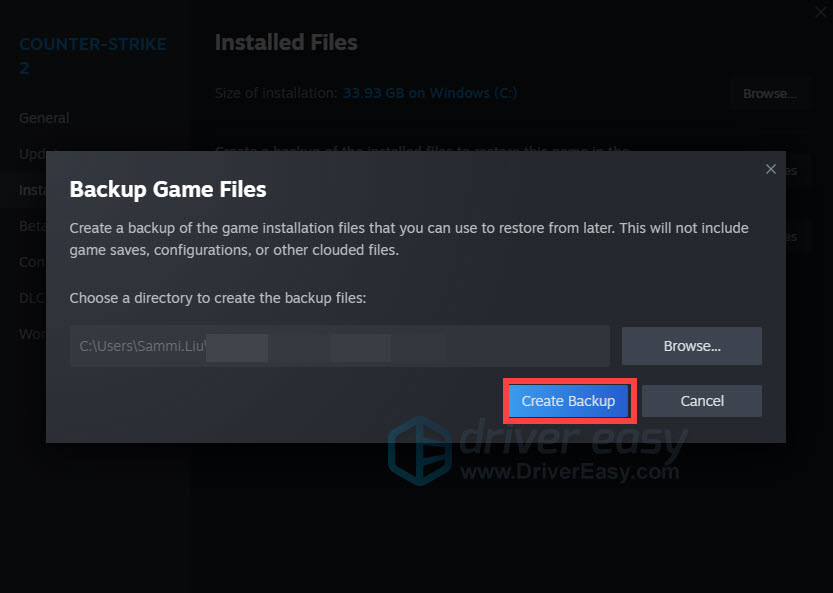
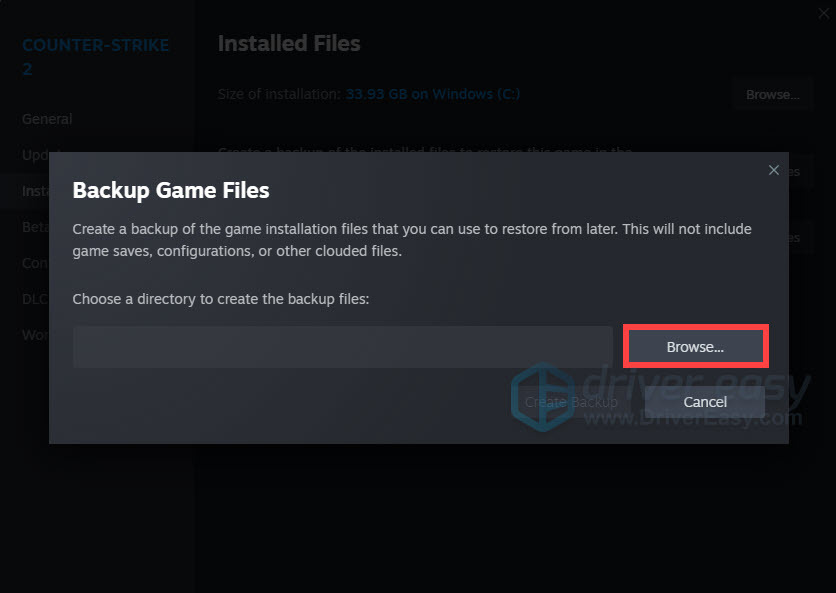
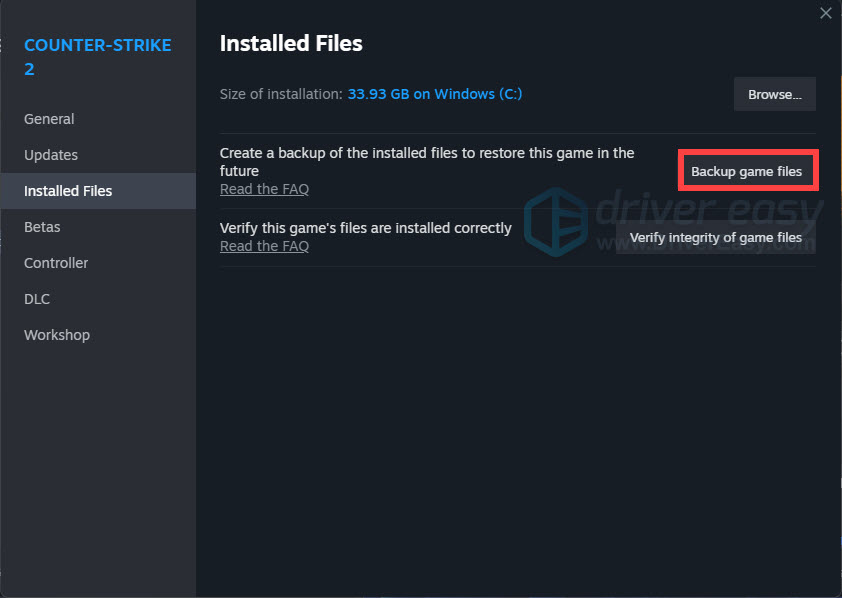
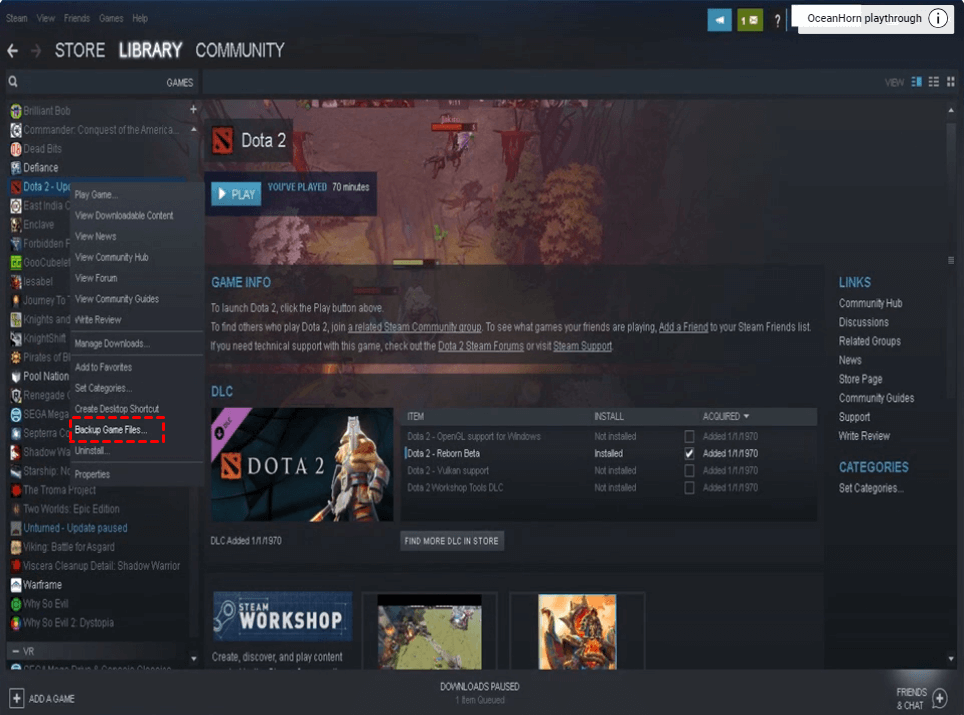
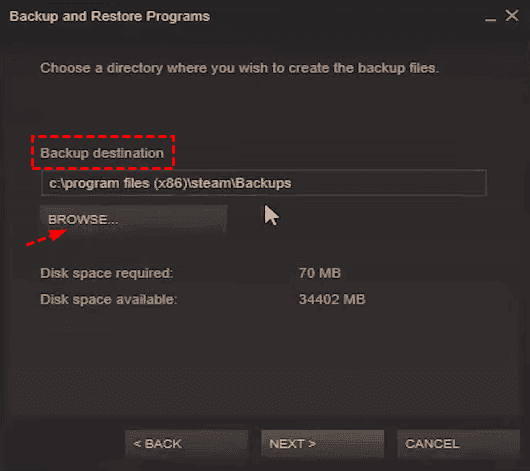
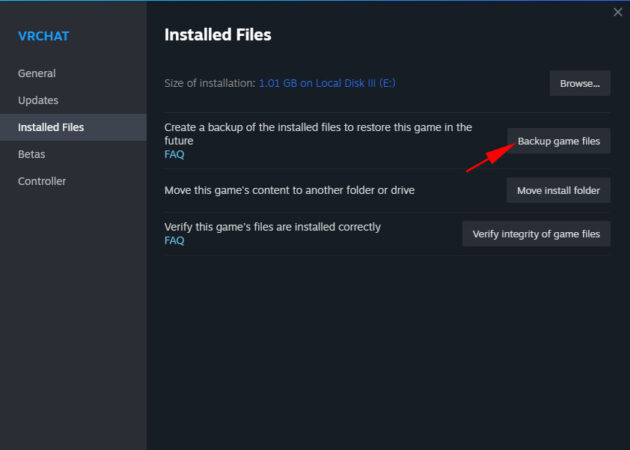
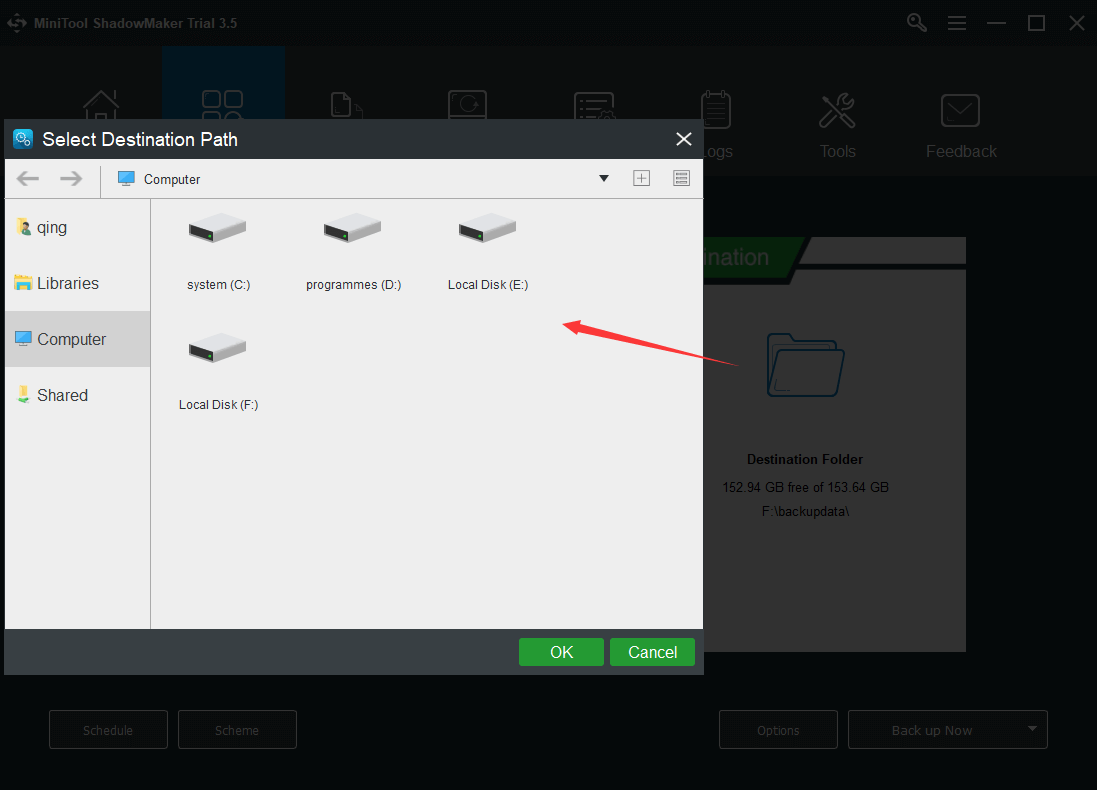
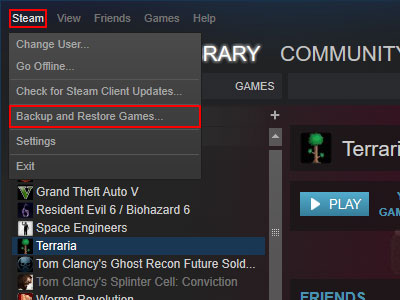
Steam's built-in tool is straightforward for creating a dedicated backup of your installed games. First, open Steam and navigate to 'Steam' in the top-left menu, then select 'Backup and Restore Games.' Choose 'Backup currently installed programs,' then pick the specific games you want to save. Steam will then ask you to select a destination folder for your backup files. Remember to choose a location with ample space, such as an external hard drive or a large network drive. The process will compress the game files, making them ready for restoration later, often faster than a full re-download.
Step-by-Step Guide to Using Steam's Backup Tool:
- Open your Steam client.
- Click 'Steam' in the top-left corner.
- Select 'Backup and Restore Games...'.
- Choose 'Backup currently installed programs' and click 'Next'.
- Check the boxes next to the games you wish to backup and click 'Next'.
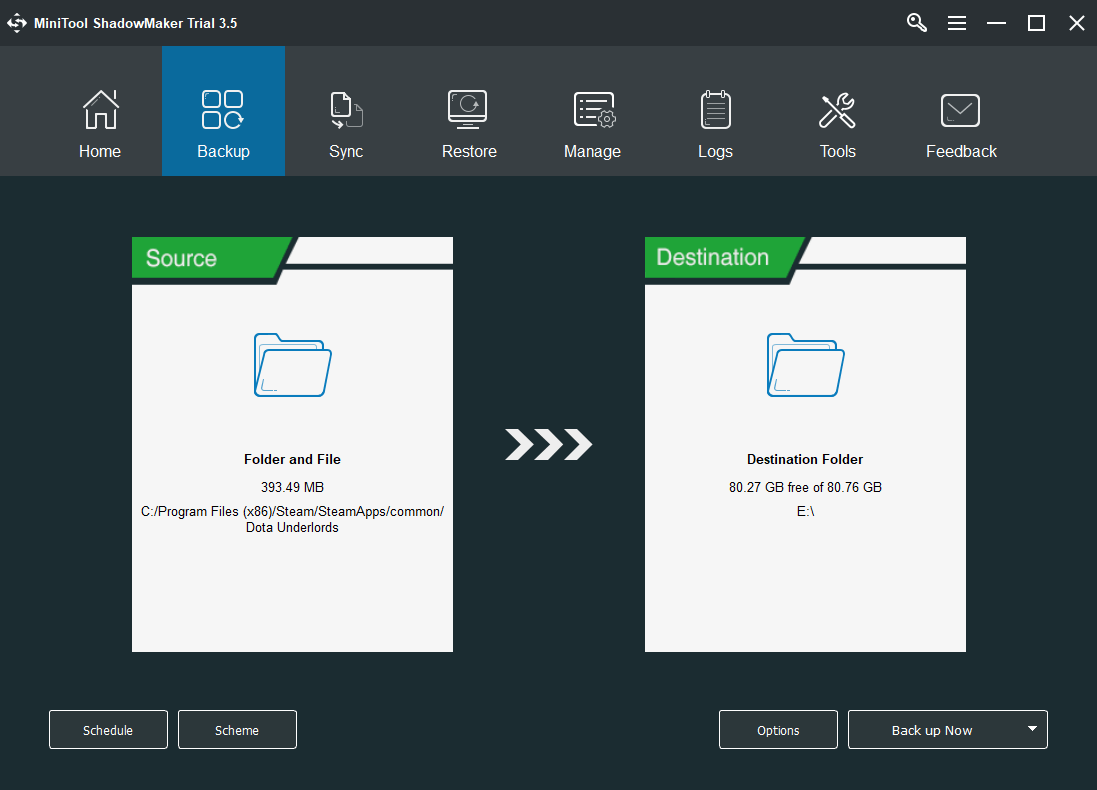
- Select the destination folder for your backup files. An external drive is recommended.
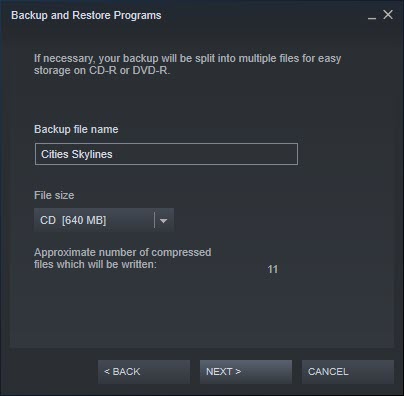
- Choose a file name for your backup and optionally set a custom file size (e.g., for burning to discs, though less common now). Click 'Next'.
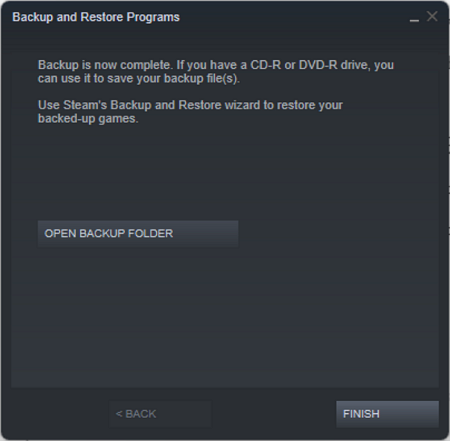
- Steam will then proceed to compress and save your game files to the chosen location. This might take some time depending on game size.
- Once completed, you will have a set of backup files ready for restoration.
When is Manually Copying Steam Game Folders a Better Option?
Manually copying game folders from your Steam library is often the preferred method for seasoned gamers who want more control or need to quickly move games between drives on the same PC. This approach is excellent if you are just moving a game from an HDD to a faster SSD, or if you want to bypass the compression and decompression steps of Steam's built-in tool, which can sometimes save time. It is also particularly useful for games with complex mod setups, as manual copying often preserves the mod structure more reliably than the built-in backup. However, remember that save files are typically stored separately.
Steps for Manual Steam Game Backup:
- Locate your Steam Library folder. By default, this is usually
C:
ogram Files (x86)	eam	eamapps
ommon
. - Identify the folder of the game you wish to backup (e.g., 'Cyberpunk 2077').
- Copy this entire game folder to your desired backup location (e.g., an external hard drive, another internal drive).
- To restore, simply paste the folder back into the Steamapps/common directory.
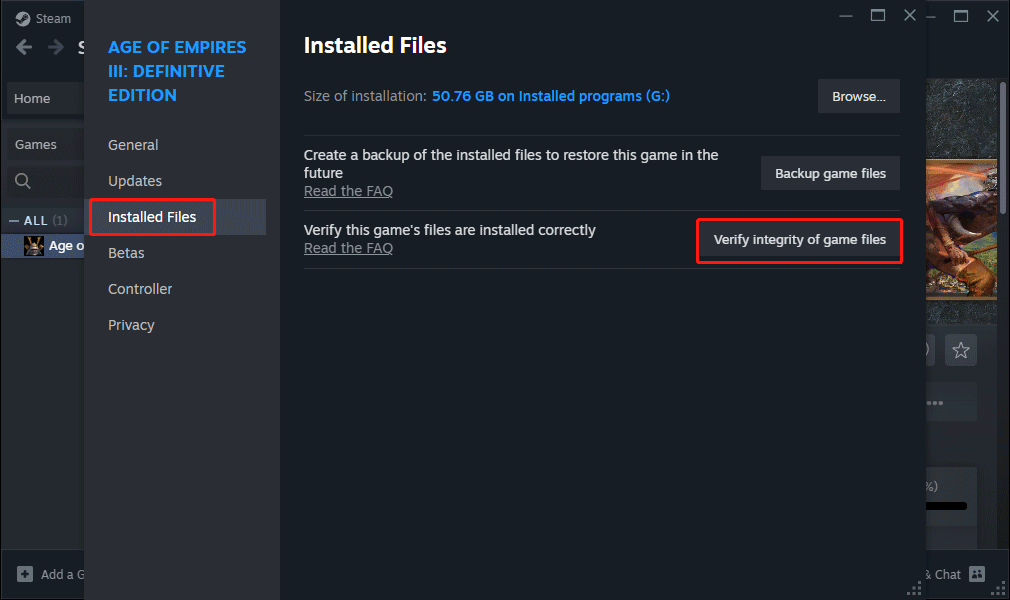
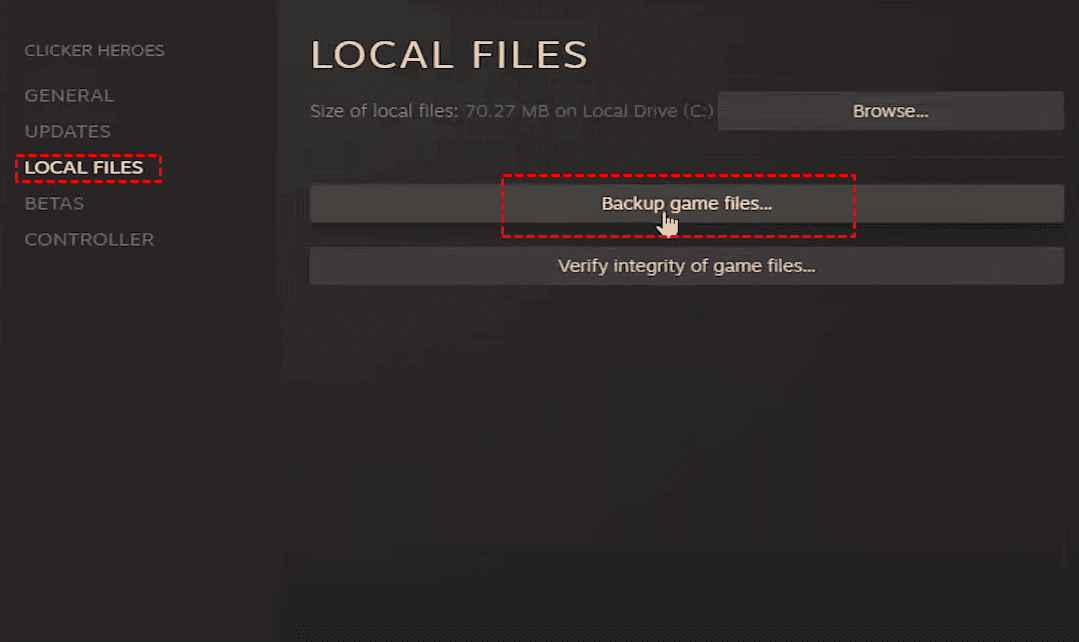
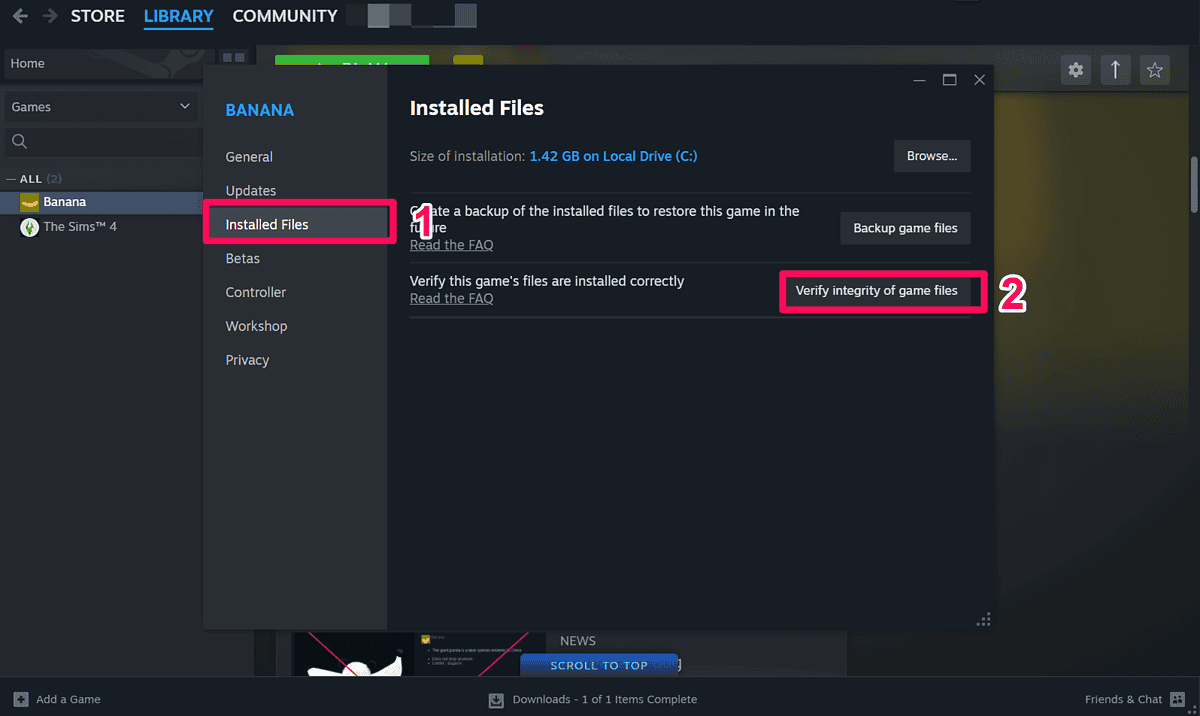
- In Steam, go to the game in your library, right-click, select 'Properties,' then 'Local Files,' and click 'Verify integrity of game files.' Steam will detect the existing files and download any missing components, integrating the game without a full re-download.
Where are My Steam Game Save Files Located and How Do I Back Them Up?
This is a critical distinction that many gamers overlook! Steam's backup utility or manual game folder copying primarily handles the game installation files, not necessarily your individual save games or configuration files. Most save files are stored in different locations, often within your 'Documents' folder, 'AppData' directory (which is usually hidden), or directly within the game's installation folder itself. For example, many older games put saves directly in their install folder, while newer titles frequently use a subfolder in 'Documents' or a specific Steam Cloud location. Always identify and back up these save files separately to ensure your progress is safe.
Common Save File Locations:
C: UsersourUsername Documents My Games(very common)C: UsersourUsername AppData LocalC: UsersourUsername AppData RoamingC: UsersourUsername Saved Games- Within the game's installation directory (less common for modern games)
Tools like GameSave Manager can help automate this process by locating and backing up your save files, making it much easier for the busy gamer.
Does Steam Cloud Save My Game Progress Automatically?
Yes, Steam Cloud is a fantastic feature that automatically uploads your game save files and configuration settings to Valve's servers, offering an extra layer of protection. This is incredibly convenient for gamers who play across multiple PCs or need a quick way to restore progress after a system wipe. However, not all games support Steam Cloud, and some that do might only sync specific files. It is important to check if a game supports Steam Cloud (look for the cloud icon on the game's store page or in your library properties). While powerful, Steam Cloud should not be your *only* backup strategy, as manual backups give you full control over all game files and modifications.
How Can I Verify My Steam Game Files After Restoration or Moving?
After you have restored a game using Steam's built-in tool, or manually copied files to a new location, it is good practice to verify the integrity of the game files. This process checks for any missing or corrupted files within the game's installation and downloads only the necessary components, ensuring your game is fully functional. To do this, simply right-click the game in your Steam Library, go to 'Properties,' then 'Local Files,' and click 'Verify integrity of game files.' This quick check helps prevent launching issues and ensures your game is ready to play without unexpected crashes.
What are the Best Practices for Managing My Backups and Library?
For the average gamer, effective backup management is key to a smooth experience. Firstly, always use a reliable external hard drive or network-attached storage (NAS) for your backups; never rely solely on your primary drive. Secondly, develop a regular backup schedule. For games you play frequently, weekly or bi-weekly save game backups are wise. For large game installations, update full backups after major patches or when you finish a game. Consider using a combination of Steam's built-in tool for full games and manual copying for specific save files. This hybrid approach ensures both your installed games and your progress are fully protected. Lastly, routinely check your backup drive to ensure files are accessible and not corrupted.
As US gamers continue to integrate gaming into their busy lives, the value of robust, hassle-free solutions for managing their digital libraries grows. From safeguarding against data loss to optimizing installation times and ensuring seamless play across devices, backing up your Steam game files is an essential skill. By understanding and implementing these strategies, you are not just protecting data; you are protecting your leisure time, your investment, and your passion. With trends showing increasing social gaming and cross-platform play, having a reliable backup strategy means more time playing with friends and less time troubleshooting.
What's your biggest gaming challenge when it comes to managing your library? Comment below!
FAQ Section
What is the easiest way to backup Steam games for a quick restore?
The easiest method is to use Steam's built-in 'Backup and Restore Games' utility. It creates compressed archives that Steam can easily unpack, saving you from lengthy re-downloads. This is ideal for full game installations.Do Steam backups include my game saves?
Generally, no. Steam's built-in backup primarily handles the core game installation files. Your game save files are typically stored in separate locations, often within your 'Documents' or 'AppData' folders. Always back up your save files separately or utilize Steam Cloud for supported titles.Can I move Steam games to another drive without re-downloading?
Yes, you can! You can either use Steam's 'Move Install Folder' option in the game's properties under 'Local Files' or manually copy the game folder from your Steamapps/common directory to the new location and then 'Verify integrity of game files' through Steam.How often should I backup my Steam game files?
For full game installations, consider backing up after major updates or when you finish a game you might want to revisit. For critical save files, especially for single-player games, backing up weekly or after significant progress is highly recommended, especially if the game does not use Steam Cloud.What is the difference between Steam Cloud and a local backup?
Steam Cloud stores your game saves and settings online on Valve's servers, offering automatic syncing and accessibility from any PC. A local backup is a copy of your game installation and/or save files stored on your own physical drive (e.g., external HDD). Local backups give you full control over the entire game data, including mods, while Steam Cloud focuses on progress saves.Can I backup only specific parts of a Steam game?
While Steam's built-in tool backs up entire games, manual copying allows you to target specific folders. For save files, you will need to locate them manually and copy them. Tools like GameSave Manager can also help manage specific save data backups.Is it safe to delete game files from my Steam library after backing them up?
Yes, once you have a verified backup, you can safely uninstall the game through Steam to free up drive space. If you wish to play it again, you can restore from your backup or re-download it from Steam.Learn to backup Steam game files, safeguard game data, use Steam backup tools, understand manual backup methods, restore games, and optimize your gaming experience for busy lifestyles. Protect your progress and avoid lengthy re-downloads.
35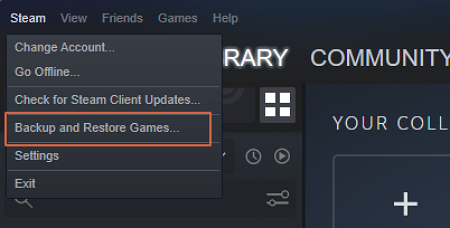


How To Backup GTA V Files On Steam 2026 Tutorial EaseUS Click Steam To Backup Restore . Steam Backup Game Files DOCX Steam Backup Game Files 1 2048 . Steam Download Slow How To Fix It Driver Easy Steam Backup Game Fieles Create Backup . Steam Download Slow How To Fix It Driver Easy Steam Backup Game Files Browse . How To Backup GTA V Files On Steam 2026 Tutorial EaseUS How To Backup Gta V Files Steam


How To Transfer Your Final Fantasy VII Save Files To The New 2026 Steam Final Fantasy Vii Steam 2026 Save File Transfer 2026 Folder 1024x576 . How To Backup Your Game Files On Steam Step By Step YouTube . Cara Memeriksa File Game Di Steam Panduan Mudah Hobi Code Jasa How To Verify Game Files On Steam 2 . How To Backup GTA V Files On Steam 2026 Tutorial EaseUS Backup Finish . Steam Download Slow How To Fix It Driver Easy Steam Back Up Game Files

Where To Find Steam Save Locations For Backup LevelUpTalk Steam Save File Location 03 11 2026 4758936c 42b9 4ba6 9f32. How To Transfer DOTA 2 To Another PC 2 Tested Methods Backup Game Files . How To Run Steam Backup Game Files Clear Complete Backup Destination . How To Backup Restore Steam Cloud Saves Gaming Tips Steam Backup Game Files . Steam Backup Game Files A Guide To Safeguard Your Progress Steam Bacup Game Files



Steam Backup Game Files By Steam Backup Magic Tool Steam Backup Game Files Thumbnail . Where Steam Actually Stores Your Save Files And How To Back Them Up In Where Steam Actually Stores Your Save Files And How To Back Them Up . How To Backup Game Files On Steam 2024 Guide YouTube . How To Run Steam Backup Game Files Clear Complete Backup Game Files . NEW UI How To Backup Game Files On Steam 2023 YouTube

How To Backup GTA V Files On Steam 2026 Tutorial EaseUS Restore Previous Backup . Share GTA V Game Files Between Steam And Epic Games Leo3418 S 06 2 Steam Gta V Files . Backup And Restore Steam Game Files Tips For Gamer EaseUS Choose Files Backed Up Before . How To Back Up All Steam Games Files Fix All Games Problem YouTube . How To Recover Deleted Steam Files Game Data And Game Saves On PC 4 2 Backup Game 630x450

Steam Backup Game Files By Steam Backup Magic Tool Steam Backup Game Files 7 . Comunit Di Steam Guida How To Transfer Steam Game Files And Save. Steam Backup Game Files By Steam Backup Magic Tool Steam Backup Game Files 3 . How To Backup Steam Games Steam Backup Games Ss4 . Steam Backup Game Files By Steam Backup Magic Tool Steam Backup Game Files 2

Windows 10 Game Save File Location Full Guides Bakcup Restore Steam Game Files . How To Backup Games On Steam A Beginner Friendly Guide How To Backup Steam Game Files 3 . How To Fix Corrupt Update Files Error On Steam 6 Easy Methods Verify Integrity Game Files 1200x717 . 3 Methods To Backup Steam Games Tech Quintal File Size Backup Steam . Steam Saves Location And Game Data Guide 2026 Thinglabs Store Home Share11